
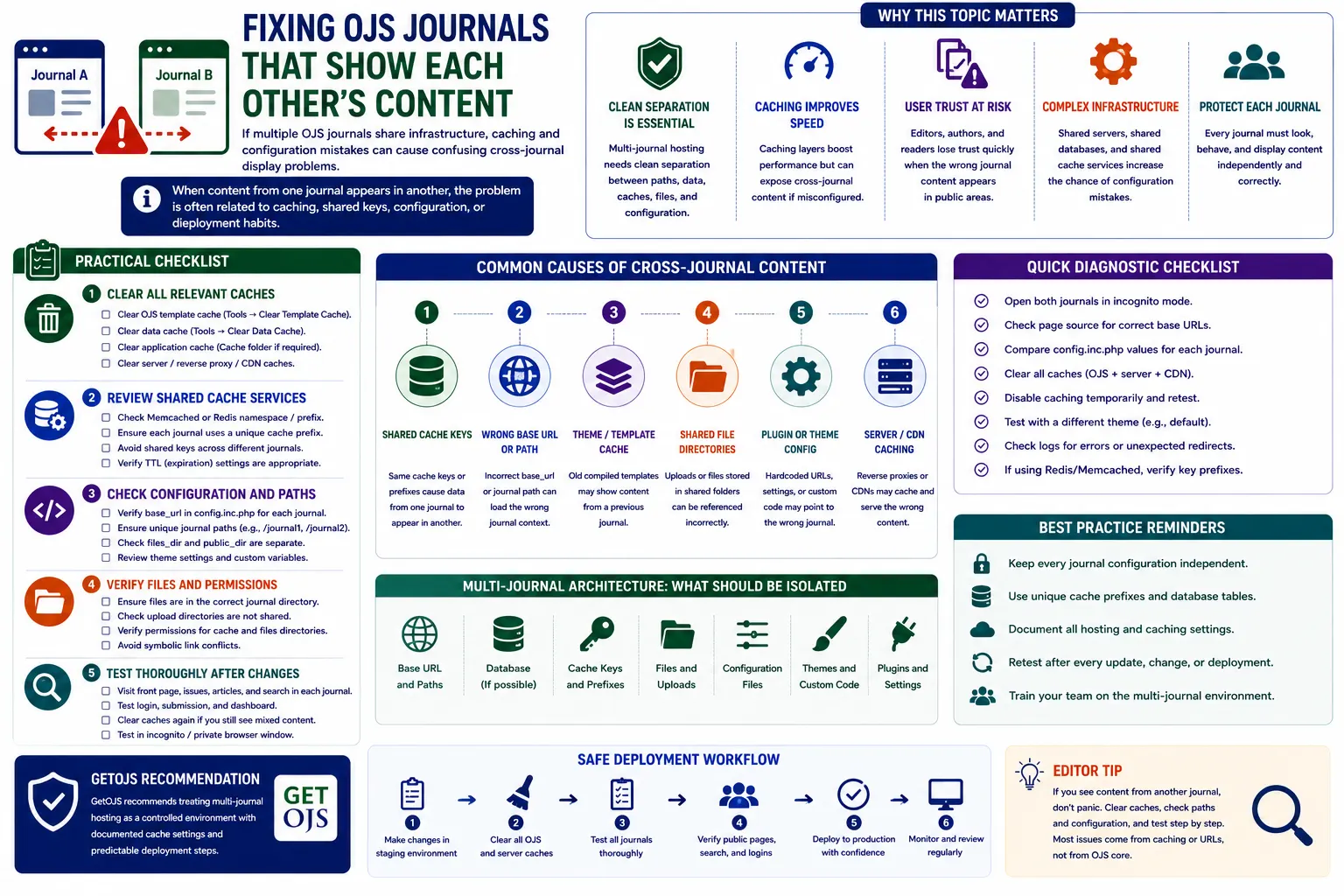
When content from one OJS journal appears in another journal, the problem can become confusing very quickly. A journal homepage may show another journal’s title, articles, menu, logo, issue, footer, announcement, or theme content. In a multi-journal Open Journal Systems installation, this type of issue is usually connected with caching, shared configuration, incorrect base URLs, journal path confusion, file directory problems, theme overrides, CDN cache, or deployment habits.
Why This Problem Is Serious
Multi-journal OJS hosting depends on clean separation. Each journal should have its own path, settings, files, theme configuration, issue archive, articles, editorial details, and public identity. When one journal shows another journal’s content, editors and readers immediately lose trust. Authors may think the journal website is broken, indexing services may crawl incorrect pages, and administrators may struggle to identify whether the issue is in OJS, server cache, theme code, or database configuration.
This problem should not be ignored. Even if it appears only sometimes, it means the system is serving content incorrectly under certain conditions. The fix should be done carefully by checking OJS cache, server cache, URL settings, journal paths, theme templates, public files, and external caching layers.
Common Symptoms
- One journal homepage displays another journal’s logo or title.
- Menus, footer links, or announcements appear from the wrong journal.
- Article pages open correctly sometimes but show mixed journal design after refresh.
- Current issue or archive page shows articles from another journal.
- Wrong CSS, theme settings, or uploaded images appear on public pages.
- The issue happens only for some users, browsers, countries, or after cache is enabled.
1. Clear OJS Application Cache First
The first safe step is clearing OJS cache. OJS stores compiled templates, cached data, and temporary files. If the cache contains old or mixed content, public pages may not reflect the latest journal settings. This can happen after theme changes, upgrade work, journal setting updates, plugin changes, migration, or deployment.
Administrators should clear template cache, data cache, and any application-level cache used by OJS. After clearing cache, test each affected journal separately. Open the homepage, current issue, archive, article page, about page, and contact page. Do not test only one page because cross-journal content may appear only in specific templates.
2. Check Shared Cache Services
Some OJS installations use external cache systems such as Memcached, Redis, Varnish, or server-level page cache. These systems improve performance, but they must be configured carefully for multi-journal environments. If cache keys or namespaces are shared incorrectly, one journal’s cached content can be served to another journal.
A common issue is cache key collision. If the cache system stores page output without including the full journal path, host, or context, a cached response from one journal may be reused for another. This is especially risky when multiple journals share one domain and different paths, such as /journal-a and /journal-b.
- Check whether Redis or Memcached is shared by multiple OJS instances.
- Use separate cache namespaces, prefixes, or databases where possible.
- Flush cache after configuration or deployment changes.
- Confirm that cache keys include journal path or host context.
3. Review Base URL and Journal Path Settings
Incorrect base URL settings can cause wrong links, mixed assets, wrong redirects, and cross-journal confusion. In OJS, each journal has a unique path. If paths are duplicated, renamed incorrectly, or handled badly by rewrite rules, content may load under the wrong context.
Check the journal path, base URL, and any custom URL configuration. If the website uses clean URLs, verify rewrite rules in .htaccess, Apache, or Nginx configuration. If the site uses multiple domains or subdomains, each domain should point to the correct journal or OJS context. Wrong routing can look like a cache problem even when the root cause is URL configuration.
4. Check Theme Settings and Custom Templates
Theme customization can also create cross-journal content problems. If a template hardcodes journal information, logo paths, menu links, footer content, or issue links, all journals may show the same content. This is common when a developer copies a theme from one journal to another and leaves fixed values inside templates.
In a multi-journal OJS installation, theme templates should use dynamic OJS variables wherever possible. Journal name, logo, homepage URL, contact information, menu items, and uploaded files should come from the current journal context. Avoid hardcoding one journal’s path or public file directory unless the design is intentionally shared.
5. Verify Public Files and Upload Directories
OJS stores public files such as journal logos, issue covers, images, and CSS assets. If public files are copied incorrectly during migration or deployment, one journal may display another journal’s images. File permission issues can also prevent the correct file from loading, causing fallback or old cached assets to appear.
Check whether each journal has its own public files directory and whether the uploaded logo and images are stored under the correct journal path. If images are cached by browser or CDN, clear those caches too. When replacing logos or theme images, use cache-busting query strings if needed.
6. Review CDN and Cloudflare Cache
If the website uses Cloudflare, Varnish, LiteSpeed Cache, Nginx FastCGI cache, or another CDN, the issue may be outside OJS. A CDN can cache HTML pages, CSS, JavaScript, and images. If HTML caching is not separated by URL, cookie, language, or journal path, users may see the wrong journal page.
For OJS, administrators should be careful with full-page caching. Public article pages may be cacheable, but login pages, dashboard pages, editorial workflow pages, and user-specific pages must not be cached publicly. Multi-journal homepages should also use cache rules that respect complete URLs and paths.
7. Check Locale and Language Cache
Multi-language OJS websites can have additional cache complexity. If journal language, locale URL, or language-specific pages are cached incorrectly, the wrong language or content may appear. This is common when the same page path is used with different locale parameters or when a CDN ignores query strings.
Check whether language selection, locale-in-URL settings, and cache rules work together. If the journal uses English and another language, test both languages after clearing cache. Also check whether menus, announcements, and static pages show the correct journal and language content.
8. Inspect Plugins That Change Public Output
Some plugins modify homepage blocks, article pages, metadata, indexing output, menus, themes, statistics, or custom content areas. If a plugin stores settings globally instead of per journal, or if it does not handle context correctly, content may appear across journals unexpectedly.
Disable suspicious plugins temporarily on staging and test the affected pages. Do not randomly disable plugins on a live site without understanding the impact. Start with plugins that add custom blocks, static pages, homepage sections, menus, banners, or journal-specific content.
9. Check Database Context and Settings
OJS stores many settings with context or journal identifiers. If settings are imported incorrectly during migration, copied between journals, or updated through manual SQL without proper context IDs, one journal may inherit another journal’s values. This can happen with journal settings, plugin settings, navigation menus, static pages, and theme options.
Administrators should avoid direct database edits unless they understand the OJS schema. If database changes are required, take a full backup first. Check whether the wrong content is stored in journal settings or only appears after caching. This distinction helps identify whether the problem is data-level or cache-level.
10. Use Staging for Investigation
Cross-journal content issues should be investigated safely. A staging copy allows administrators to clear cache, disable plugins, change theme settings, adjust cache drivers, and test server rules without affecting live users. This is especially important for large multi-journal portals.
On staging, reproduce the issue first. Then test one change at a time. If you clear OJS cache, test. If you disable CDN cache, test. If you switch theme, test. If you disable a plugin, test. This method avoids guessing and helps identify the real cause.
Practical Troubleshooting Order
- Clear OJS template, data, and application cache.
- Purge CDN, Varnish, LiteSpeed, Redis, Memcached, or server cache.
- Check journal paths, base URLs, domain routing, and rewrite rules.
- Review theme templates for hardcoded journal names, paths, logos, and links.
- Verify public files, upload directories, and file permissions.
- Disable suspicious custom blocks or public-output plugins on staging.
- Check journal-specific settings in database only after taking backup.
Prevention Best Practices
The best fix is prevention. Multi-journal OJS hosting should be treated as a controlled environment. Every journal should have documented paths, settings, theme configuration, cache rules, plugin usage, and deployment steps. When a new journal is added, the administrator should verify that it does not inherit unwanted content from another journal.
Developers should avoid hardcoding journal-specific information inside shared templates. Server administrators should configure cache rules carefully. Editors should report exactly which page shows wrong content, what they expected to see, and whether the issue appears after login, logout, refresh, or cache clearing.
Common Mistakes to Avoid
- Enabling full-page cache without testing all journals separately.
- Using the same Redis or Memcached namespace for multiple unrelated OJS sites.
- Hardcoding one journal’s logo, title, or footer in shared theme templates.
- Copying public files from one journal to another without updating paths.
- Changing journal paths without updating redirects and cache rules.
- Testing only the homepage and ignoring article, issue, archive, and static pages.
Post-Fix Testing Checklist
- Open each journal homepage in a private browser window.
- Check current issue, archive, article detail, PDF, about, and contact pages.
- Test both logged-in and logged-out states.
- Test mobile and desktop views.
- Test after clearing browser cache and after CDN cache is enabled again.
- Confirm that search engines and sitemap URLs point to the correct journal pages.
GetOJS Recommendation
GetOJS recommends treating multi-journal hosting as a controlled environment with documented cache settings and predictable deployment steps. If journals show each other’s content, start with cache clearing, then inspect shared cache services, base URLs, journal paths, themes, public files, plugins, and CDN rules.
The issue should be fixed carefully, not temporarily hidden. A stable OJS portal needs clean separation between journal contexts, cache keys, files, theme settings, and configuration. With the right testing and documentation, administrators can prevent cross-journal content problems and keep every journal identity clear and trustworthy.
Need help fixing cross-journal content issues in OJS?
Our team can audit cache settings, journal paths, themes, plugins, file directories, CDN rules, and OJS configuration to fix content mix issues safely.