
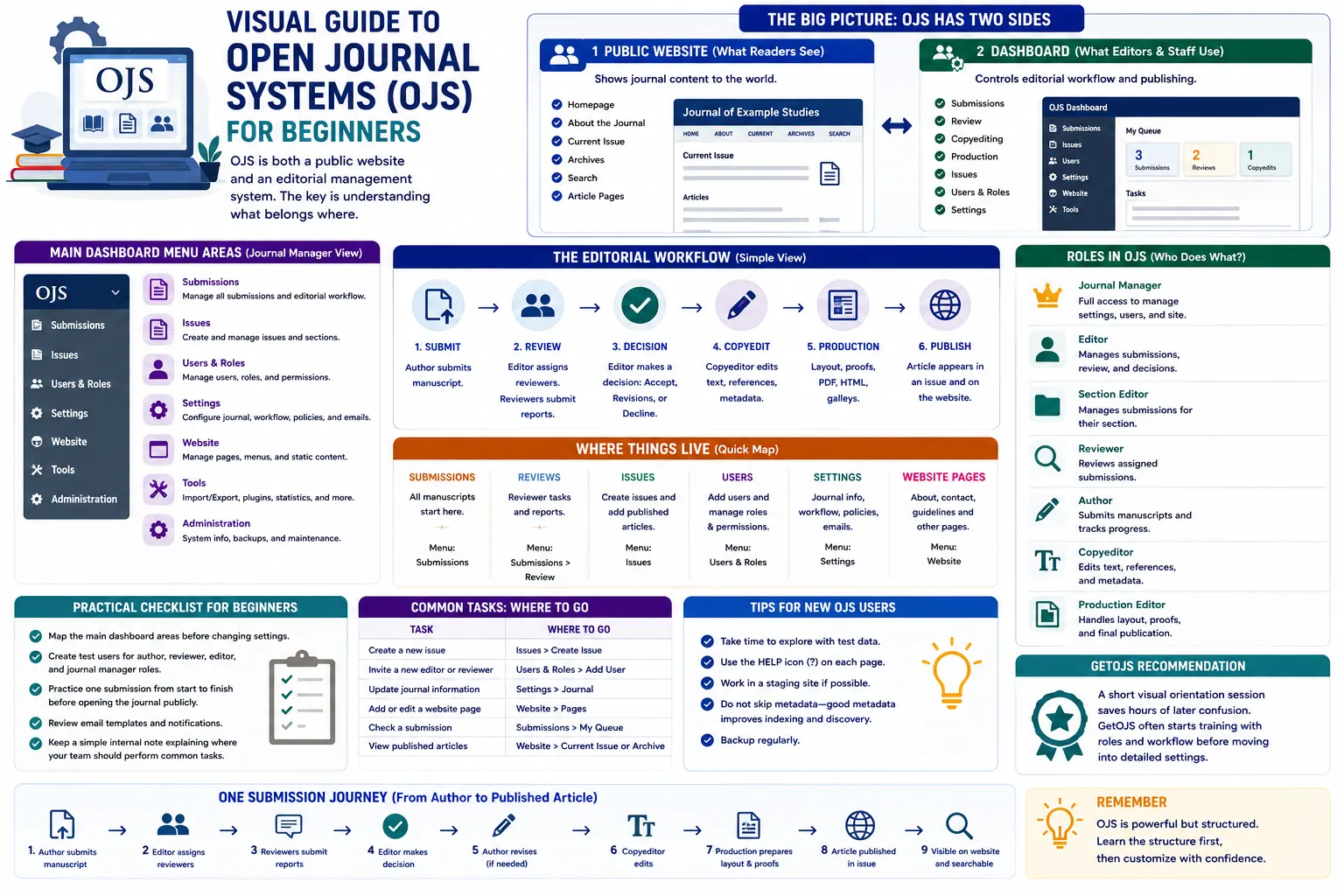
New users often struggle because OJS is both a public journal website and a complete editorial management system. The easiest way to understand it is to separate the visible website from the private dashboard, then learn how roles, submissions, issues, settings, and publishing tools connect with each other.
Introduction: What OJS Looks Like to a Beginner
Open Journal Systems, commonly called OJS, is used by journals to receive manuscripts, manage editorial review, prepare accepted papers, and publish issues online. For a new journal team, the system may look complex at first because it contains many areas for different types of users. An author sees submission steps. A reviewer sees review requests. An editor sees manuscripts waiting for decisions. A journal manager sees settings, users, website pages, plugins, email templates, and publication options. Because every user role has a different purpose, the first step is not to memorize every menu. The first step is to understand the visual map of the platform.
Think of OJS as two connected spaces. The first space is the public journal website. This is where readers visit the homepage, current issue, archive, article pages, PDF files, editorial board page, contact page, author guidelines, and policies. The second space is the dashboard. This is where journal staff work behind the scenes to handle submissions, assign editors, invite reviewers, make decisions, copyedit files, upload final galleys, schedule articles, and publish content. When beginners mix these two areas together, OJS feels confusing. When they separate them clearly, the system becomes much easier to learn.
Why this topic matters
- The public website shows journal content, but the dashboard controls editorial and publishing work.
- Users see different menus depending on their roles and permissions.
- Submissions, issues, users, settings, and website pages each live in different parts of the system.
- A basic visual understanding helps editors avoid wrong settings, missing metadata, and incomplete publishing steps.
1. The Public Website Area
The public website is the front side of the journal. It should be simple for visitors to read and navigate. Most readers do not care about the internal editorial workflow. They want to find articles, download PDFs, check the current issue, search the archive, understand the journal scope, and confirm whether the journal looks trustworthy. Important public pages usually include About the Journal, Editorial Team, Author Guidelines, Peer Review Policy, Publication Ethics, Privacy Statement, Contact, Current Issue, Archives, and Search.
For beginners, the key point is that public pages are controlled from the dashboard, but they are viewed on the website. For example, if you update the journal description, homepage content, logo, navigation menu, or footer links, the change is usually made from settings or appearance sections inside the dashboard. After saving, the change appears on the front website. This is why journal managers should always check both sides: make the change in the dashboard, then open the public page to confirm that it looks correct on desktop and mobile.
2. The Dashboard Area
The dashboard is the working area for editors, managers, reviewers, and authors. After login, users are taken to different screens depending on their role. A journal manager may see settings and administration tools. An editor may see active submissions. A reviewer may only see assigned reviews. An author may see their submitted manuscripts and new submission button. This role-based access is one of the most important ideas in OJS. If a person says, “I cannot see this menu,” the first thing to check is their assigned role.
The dashboard is also where most mistakes can happen if beginners click without understanding the workflow. For example, deleting a role, changing a section, editing an email template, changing plugin settings, or modifying the submission checklist can affect real users. Before making large changes, it is better to test on a staging copy or note the existing configuration. For live journals, careful dashboard management protects the editorial record and avoids confusion for authors and editors.
3. User Roles: Who Does What?
OJS uses roles to control responsibilities. The common roles are journal manager, editor, section editor, author, reviewer, copyeditor, layout editor, proofreader, and reader. In smaller journals, one person may perform multiple roles. In larger journals, responsibilities may be divided across a full editorial team. A journal manager usually controls settings, users, website content, plugins, and configuration. Editors manage submissions and editorial decisions. Section editors may handle submissions in specific subject areas. Authors submit manuscripts. Reviewers evaluate assigned papers and submit recommendations.
For beginners, roles should be explained visually as a responsibility map. The author sends the manuscript into the system. The editor checks it and decides whether it should move forward. Reviewers provide comments and recommendations. The editor makes the final editorial decision. After acceptance, production staff prepare the final article files. Finally, the article is assigned to an issue or published according to the journal model. When a team understands this role map, it becomes easier to decide who should receive which permissions.
4. Submission Flow: From Upload to Editorial Check
The submission process begins when an author uploads a manuscript and enters metadata such as title, abstract, keywords, author details, references, and supplementary files. The submission may include several steps depending on the journal settings. Some journals require a checklist, copyright agreement, conflict of interest declaration, or specific file types. Once the author completes the submission, the manuscript appears in the editorial dashboard.
At this stage, the editor usually performs an initial check. This may include checking scope, formatting, plagiarism report, required documents, ethical declarations, and completeness of metadata. If the manuscript is not suitable, it can be declined before review. If it needs correction, the editor can ask the author for changes. If it is suitable, the editor can send it to peer review. Beginners should understand that not every submission automatically goes to review. The editorial check is an important quality-control step.
5. Review Stage: Inviting and Managing Reviewers
The review stage is where OJS becomes very useful for editorial teams. Editors can invite reviewers, set due dates, upload review files, use review forms, send reminder emails, and receive recommendations. Reviewers may recommend accept, revisions required, resubmit for review, decline, or other decisions depending on the journal configuration. The system keeps the review history connected to the manuscript, which is better than managing everything through scattered emails.
Beginners should know that peer review in OJS depends on correct role assignment and communication. Reviewers must have reviewer accounts. Email templates should be clear. Deadlines should be realistic. Editors should check whether reviewer files and comments are visible to the author before sending any decision. A common mistake is forwarding confidential reviewer comments accidentally. Training editors on review screens helps avoid this problem.
6. Editorial Decision and Revision Cycle
After review, the editor makes a decision. If revisions are required, the author uploads a revised manuscript and response file. The editor may accept the revision directly or send it for another review round. This cycle can repeat until the manuscript is accepted or declined. OJS helps track these versions, but editors must still name files clearly and communicate expectations to authors.
The decision stage is important because it creates the official editorial record. A beginner should not treat decisions as simple status labels. Each decision sends communication, affects workflow movement, and changes what the author can do next. Before sending a decision email, editors should review the message, attachments, comments, and next steps carefully.
7. Copyediting, Production, and Galley Files
Once a manuscript is accepted, it should move into copyediting and production. Copyediting improves language, structure, references, consistency, and final presentation. Production prepares the files that readers will access, usually PDF, HTML, XML, or other galley formats. In OJS, galley files are the final public article files shown on the article page. A PDF galley should be checked for title, authors, DOI, page numbers, references, tables, figures, and journal branding.
Many beginner teams make the mistake of accepting a paper and publishing it immediately without production checks. This can lead to wrong metadata, missing author names, broken PDFs, incorrect issue placement, or inconsistent article display. A proper workflow should include final metadata review, file review, DOI check if applicable, and confirmation that the article page looks correct before publication.
8. Issues, Archives, and Article Publishing
In traditional issue-based publishing, accepted articles are assigned to an issue such as Volume 5, Issue 2. The issue may include a cover image, table of contents, publication date, and sections. Once published, the issue becomes visible on the public website. In continuous publication models, articles may be published one by one into an open issue. OJS supports different publishing models, but the journal team must decide the method clearly before production begins.
Beginners should understand that a published article is not only a PDF upload. The article record includes metadata, authors, abstract, keywords, publication date, issue placement, galley files, and sometimes DOI or indexing data. Clean article records help readers, search engines, indexing databases, and metadata harvesters understand the content properly.
9. Settings, Plugins, and Website Management
Journal settings control the identity and behavior of the journal. This includes journal title, initials, ISSN, contact details, sections, submission settings, workflow settings, email templates, navigation menus, theme, logo, homepage content, and footer content. Plugins add extra functionality such as DOI registration, statistics, metadata export, indexing support, custom blocks, or theme features.
For beginners, settings should be changed slowly and documented. If a plugin is enabled without testing, it may change public display or workflow behavior. If a theme is changed without checking pages, the website may look broken on mobile. If navigation links are edited incorrectly, users may not find important policies. A good practice is to keep a small internal configuration note that records major settings, installed plugins, active theme, and important custom changes.
10. Practical checklist
- Map the main dashboard areas before changing settings.
- Create test users for author, reviewer, editor, and journal manager roles.
- Practice one submission from start to finish before opening the journal publicly.
- Check the public website after changing homepage, navigation, theme, or footer settings.
- Keep a simple internal note explaining where your team should perform common tasks.
- Review final article metadata and galley files before publishing any issue.
GetOJS recommendation
A short visual orientation session saves hours of later confusion. GetOJS often starts training with roles and workflow before moving into detailed settings. For a new journal team, the best learning method is to create a test submission and move it through every stage: submission, editorial check, review, revision, acceptance, copyediting, production, issue assignment, and publication. This practical exercise shows how the public website and dashboard work together.
OJS becomes much easier when beginners stop seeing it as one large system and start seeing it as a set of connected areas. The public website builds reader trust. The dashboard manages editorial work. Roles control what each user can do. Submissions move through stages. Issues organize published content. Settings and plugins shape the journal experience. Once this map is clear, journal teams can manage OJS with more confidence and fewer mistakes.
Need help applying this to your journal?
Our team can help configure, migrate, secure, customize, or maintain your OJS journal website.